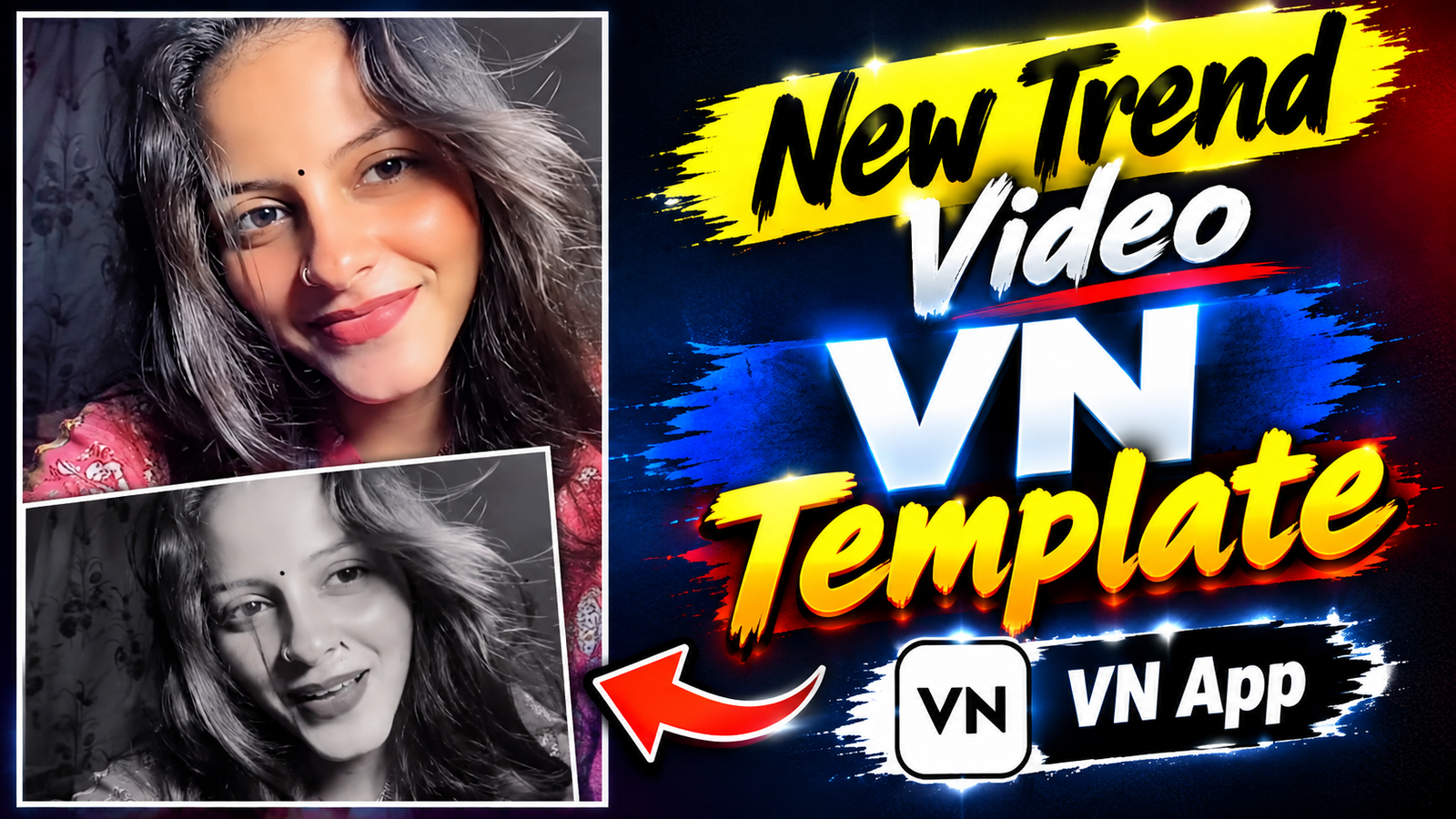
VN Codes serve as shareable templates that streamline the video editing process by embedding complex project settings, transitions, effects, and color grading parameters into a scannable QR matrix. Instead of manually configuring every timeline aspect, creators can use these codes to maintain consistent editing quality across multiple projects.
Example: A creator designs an engaging aesthetic with specific animations and transitions. By sharing the QR code of this sequence, they allow others to import the exact timeline structure, saving hours of manual labor in recreating complex visual arrangements.
2. Mastering Video Creation in the VN App
Creating dynamic content in the VN app involves utilizing its multi-track editing interface to layer text, music beats, and visual filters seamlessly. The app provides intuitive tools like keyframe animations and speed curves, enabling users to transform basic smartphone footage into professional-looking short-form videos.
Example: When editing a walking sequence, a user applies a speed ramp at the climax of the music track, adds a custom font for lyric overlays, and adjusts the color temperature, resulting in a cohesive and visually captivating social media reel.
3. How to Scan VN QR Codes
Scanning a VN QR code within the application is a straightforward process designed for quick template application. Users simply save the QR code image to their device’s camera roll, open the VN app’s scanning interface, and select the image to instantly apply the template’s effects to their own timeline.
Example: To use a saved VN QR code, launch the VN Video Editor app on your smartphone, tap the scan icon located in the upper right corner, and choose the QR code from your gallery. The app automatically reads the configuration data embedded in the QR image and loads the complete project template. You can then replace the placeholder media slots with your own raw videos or photos. This ensures that all timing, keyframes, transitions, and audio sync settings are perfectly preserved.
4. Analyzing the Animated Effects in the Featured Video
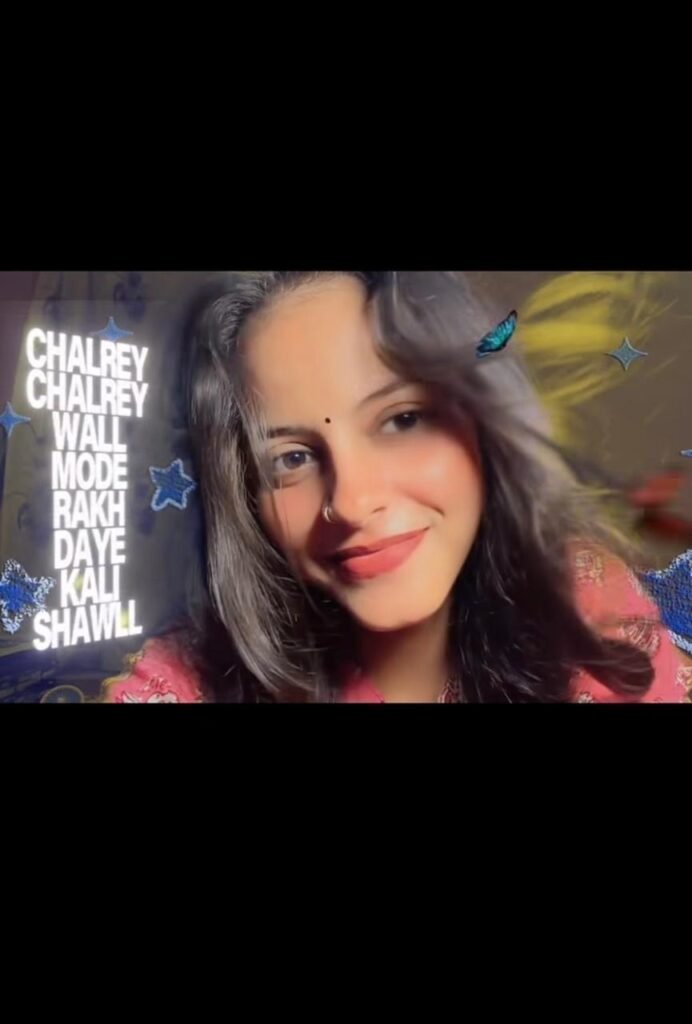
The video features a combination of aesthetic elements, including floating motion blur effects, glowing background graphics, and stylized lyric overlays synced to the audio track. These visual enhancements add depth and emotional expression to portrait videos, making them stand out on social media feeds.
Example: In the reference video, the subject is centered in the frame while dynamic graphic overlays and lyrics move smoothly around them. This technique uses keyframe animations to track text and stickers alongside the subject’s movement. By combining a warm color grade with animated particle effects and synchronized lyrics, the video creates an immersive, dreamlike aesthetic.
5. Syncing Lyrics and Audio for Maximum Impact
Precise synchronization between text overlays and audio beats is critical for creating an engaging viewer experience. When lyrics appear on screen exactly as they are sung, it creates a rhythm that keeps audiences focused on the video for a longer duration.
Example: In a lyric-centric reel, text animation keyframes must be aligned perfectly with the vocal track’s waveform. For instance, when a prominent lyric is sung, the text can fade in, zoom, or flash in time with the beat. Using the VN app’s audio waveform timeline, creators can place beat markers at specific points in the song.

6. Exporting High-Quality Videos for Social Media Platforms
Exporting your finished edit with the correct render settings ensures that all visual effects, sharp text overlays, and color adjustments remain crisp after uploading to platforms like Instagram Reels, TikTok, or YouTube Shorts.
Example: To avoid heavy compression artifacts and blurry text after uploading, always export your VN projects using optimized export settings. Set the resolution to 1080p and select a frame rate of 60 FPS for smooth motion playback. Maintain an average bitrate between 15 Mbps and 20 Mbps to preserve the detail in animated overlays.
7. Collocation
Collocation video editing in various elements such as visual timing, audio sync, and effects working together to make the video look professional and seamless.
Example: A well-edited reel aligns text transitions perfectly with the beat drops of the song and applies color grading that matches the overall mood of the video.