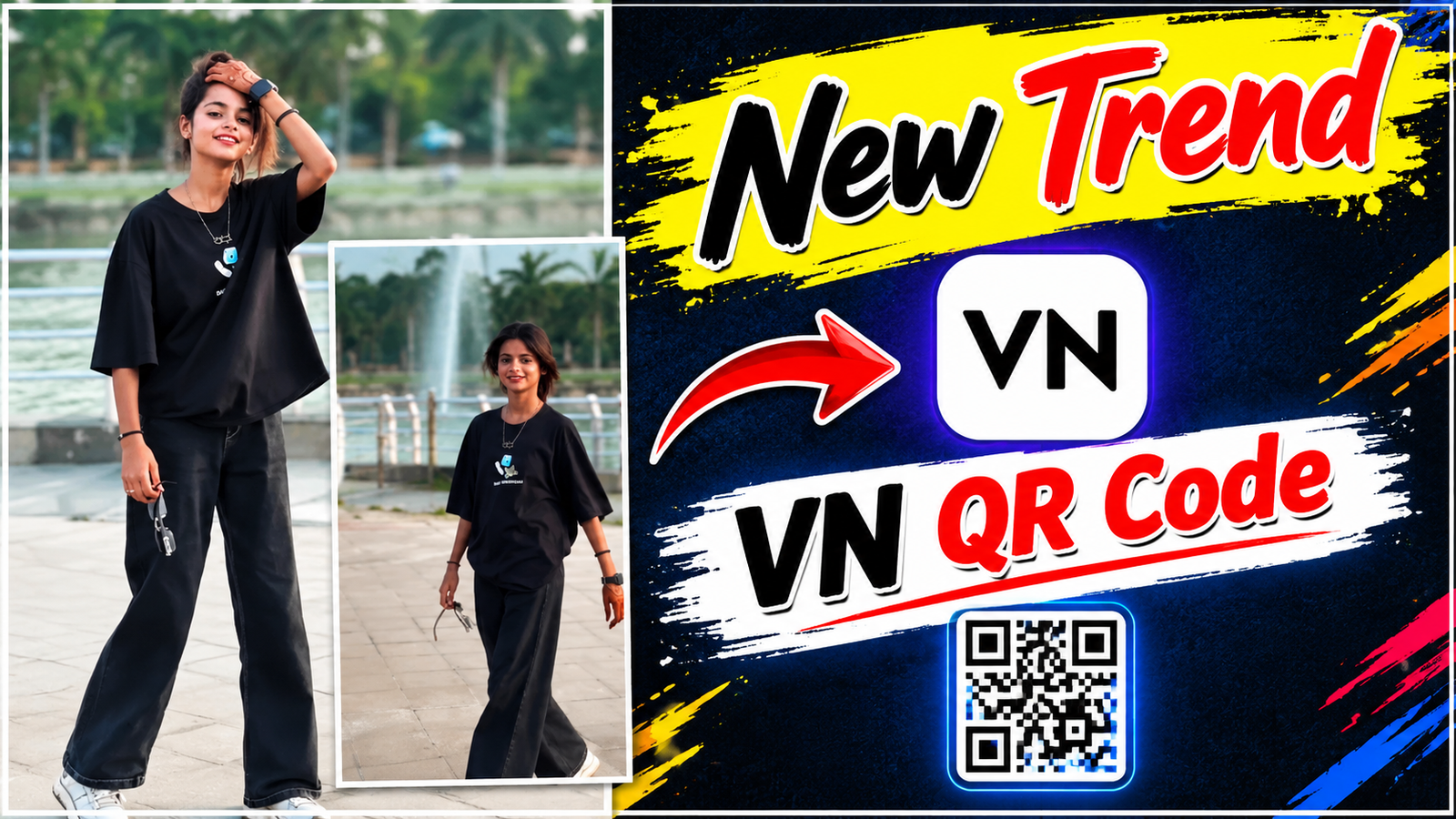
VN Codes ecosystem allows video editors to stream knowledge across devices efficiently using custom parameters encoded directly into compact QR matrices. Traditional non-linear editors require manual file sharing, timeline reconstruction, and complex layer linking, whereas VN Video Editor compresses timeline configurations, color LUTs, speed curves, effect parameters, and motion tracks into a scannable structure.
Example: Consider creating a travel reel with 15 cuts synced to a beat. Manually keyframing speed ramps takes roughly 45 minutes. With a VN Code, scanning the image instantly imports the keyframe values, beat markers, and blur effects, allowing you to swap default clips with your camera roll media in under two minutes while preserving the timing sequence.
2. Step-by-Step Practical Guide: How to Scan and Apply VN Templates
Applying a template requires a clear sequence from asset capture to rendering. Begin by saving the template QR image to your device gallery, ensuring lighting contrast does not obscure the matrix parameters. Open the VN Video Editor, locate the top-right camera or scan interface, and select the target QR image.
The application automatically parses the underlying configuration file, generating a structured timeline pre-filled with dynamic slot counters.
- Ensure the VN application is updated to avoid version mismatch errors.
- Open the Scan icon from the home interface and import the QR image from your gallery.
- Review the required media count (e.g., “7 Footage Slots”) listed on the screen.
- Tap Use Template and replace the default clips with your raw videos sequentially.
- Preview the alignment to verify transitions line up with your footage’s action points.
Example: If a template calls for 7 clips of varying durations (0.5s, 1.2s, 0.8s), selecting 7 videos in order will automatically trim each clip to fit the precise keyframe positions set by the original editor.
3. Deep Analysis of Visual Effects: Motion Blur and Transitions
The visual dynamics shown in modern trend reels rely on specific effect stacks: motion blur, soft flash overlays, and frame-rate shifting. Motion blur simulates natural human eye movement during rapid motion, smoothing abrupt cuts between static scenes and active movement.
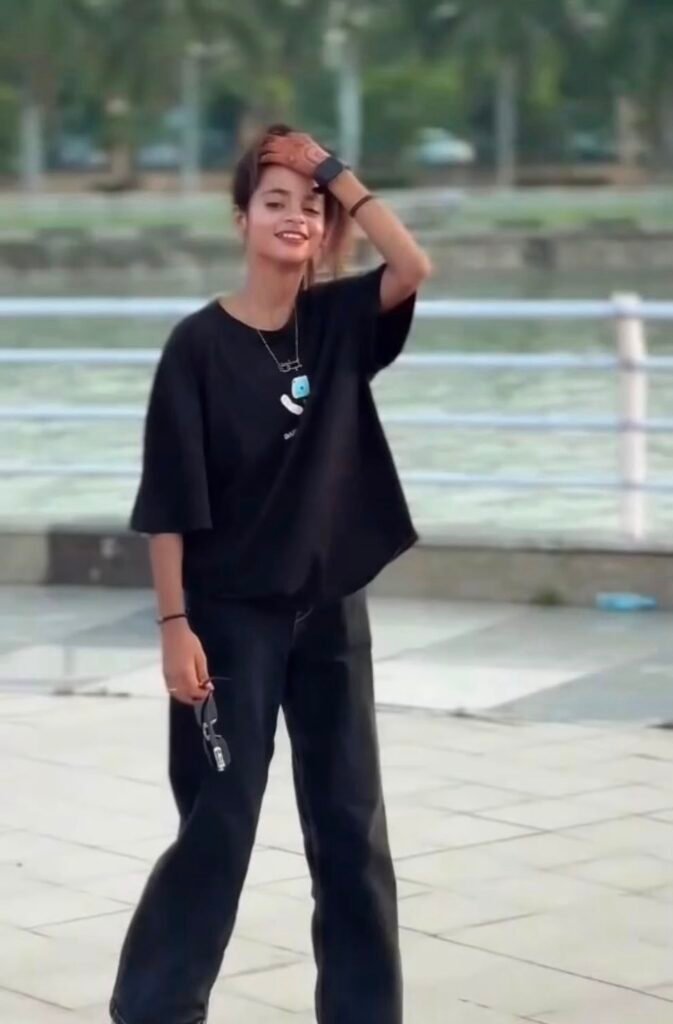
In the reference video, the subject walks forward while the camera applies a slight speed curve combined with localized blur. This visual style prevents jarring visual cuts when the scene shifts, softening edge contrast while retaining focus on the central subject.
- Motion Blur Effect: Adds directional velocity lines to background elements during dynamic movement.
- Flash Transition: Momentarily overexposes the scene at key sound beats to create high-energy transitions.
- Speed Curve Adjustment: Varies playback speed (e.g., 0.5x to 2.0x) smoothly to emphasize key movement frames.
Example: To replicate a “floating” or “ghosting” effect, apply a 60% directional motion blur during a 2.0x speed ramp, then rapidly drop playback speed to 0.8x as the subject changes pose.
4. How to Use VN Templates for Viral Social Media Reels
Creating viral short-form content requires matching audio rhythms with visual cuts within the first 3 seconds to retain viewer attention. VN templates streamline this process by pre-mapping keyframe cuts directly to trending audio beats.
Instead of spending hours manually aligning video cuts to waveform peaks, creators can use community-developed templates optimized for trending audio tracks on Instagram Reels or TikTok.
Example: A trending reel featuring a fast-paced beat drop requires cuts every 0.3 seconds. Utilizing an optimized VN Code automatically splits your raw footage into micro-clips synced to those exact waveform peaks, increasing visual retention without complex editing workflows.

5. Enhancing Aesthetics with Cinematic Color Grading and Lighting
Color grading changes the mood and visual perception of video content. Modern templates embed specific LUT (Look-Up Table) profiles, exposure offsets, and saturation curves directly into the code.
In the provided video example, a warm hue adjustment combined with heightened contrast brings out natural skintones against a soft background environment. Adjusting warmth, tint, shadows, and highlights gives flat smartphone footage a rich film-like appearance. Adjustment ParameterTarget SettingVisual Impact Warmth / Temperature+10 to +15Adds golden, cinematic tones to skin and outdoors Contrast+5 to +10Separates foreground subject from background details Shadows-5 to -10Deepens blacks for a crisp, high-end look Highlights-10 to -15Recovers sky detail and prevents blown-out bright spots
Example: Setting warmth to +12, lowering highlights to -15, and boosting saturation slightly creates a vibrant golden-hour look, making casual daylight outdoor footage appear professionally shot.
6. Best Practices for High-Quality Export Settings
A well-edited video can lose detail if exported with incorrect compression settings. Social media platforms compress video files heavily upon upload, so exporting at optimal resolution and bitrate prevents artifacts and motion stutter.
For short-form reels with fast transitions and motion blur, setting the correct frame rate (FPS) and bitrate balance is essential for maintaining sharpness.
- Resolution: Set to 1080p (1080 x 1920) for standard vertical video platforms.
- Frame Rate: Export at 60 FPS for smooth playback during fast motion blur transitions.
- Bitrate: Use high/custom settings (around 15–20 Mbps) to avoid pixelation on dark or detailed areas.
Example: Exporting a motion-heavy video at 30 FPS with low bitrate often causes blurry compression blocks on Instagram. Switching settings to 1080p at 60 FPS with an 18 Mbps bitrate preserves smooth motion blur and clean edges after uploading.
7. Collocation
Effective video editing relies on the collocation of visual timing, spatial movement, and audio sync working together. When keyframes, color profiles, motion blurs, and audio waveforms align, the final video appears seamless to the viewer. Using structured VN Codes allows editors to package these complex elements into a reliable, repeatable workflow suitable for high-volume content creation.